- Last Updated: 2023-01-16 21:31:02
Get Merchant Account
After partnership confirmation, Payloco will verify KYC materials through our compliance review process. Once approved, you will receive an email notification. Please ensure your password is secure to prevent disclosure.
Get Merchant ID and Secret Key
The Merchant ID required for integration is available through the Merchant Management Dashboard. Signing uses the SHA256WithRSA algorithm. You need to generate public and private key pairs yourself and upload the public key through the Merchant Management Dashboard. Please keep your key information safe. If your key is compromised, update it immediately.
Merchant Account:
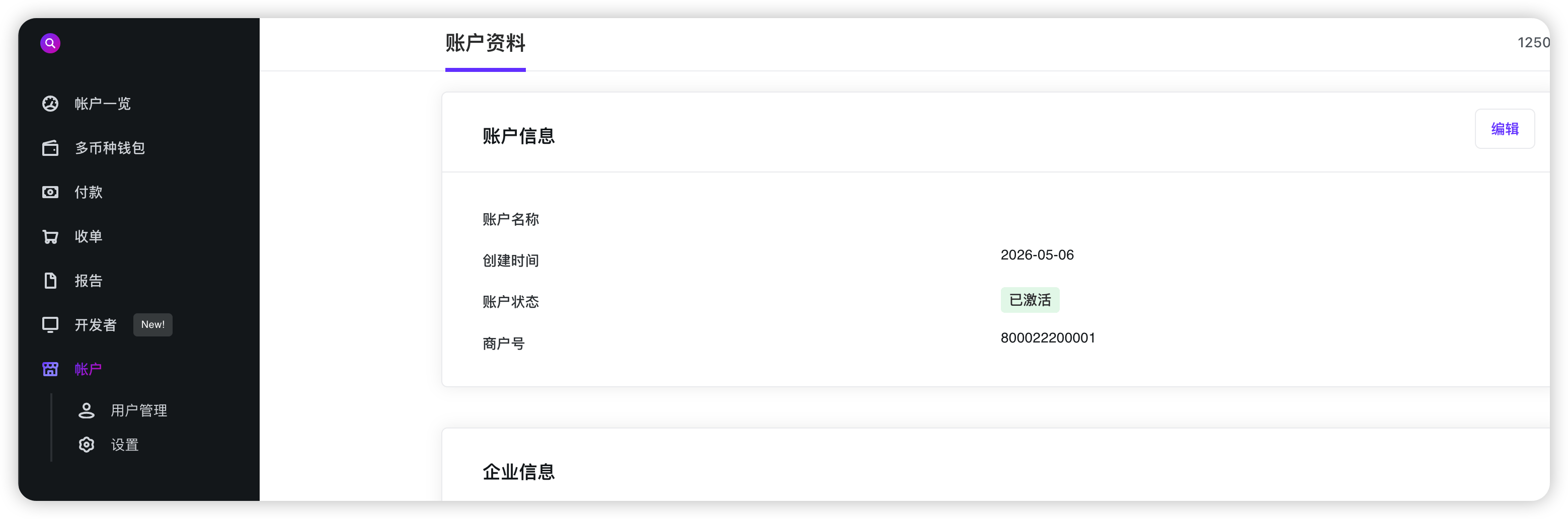
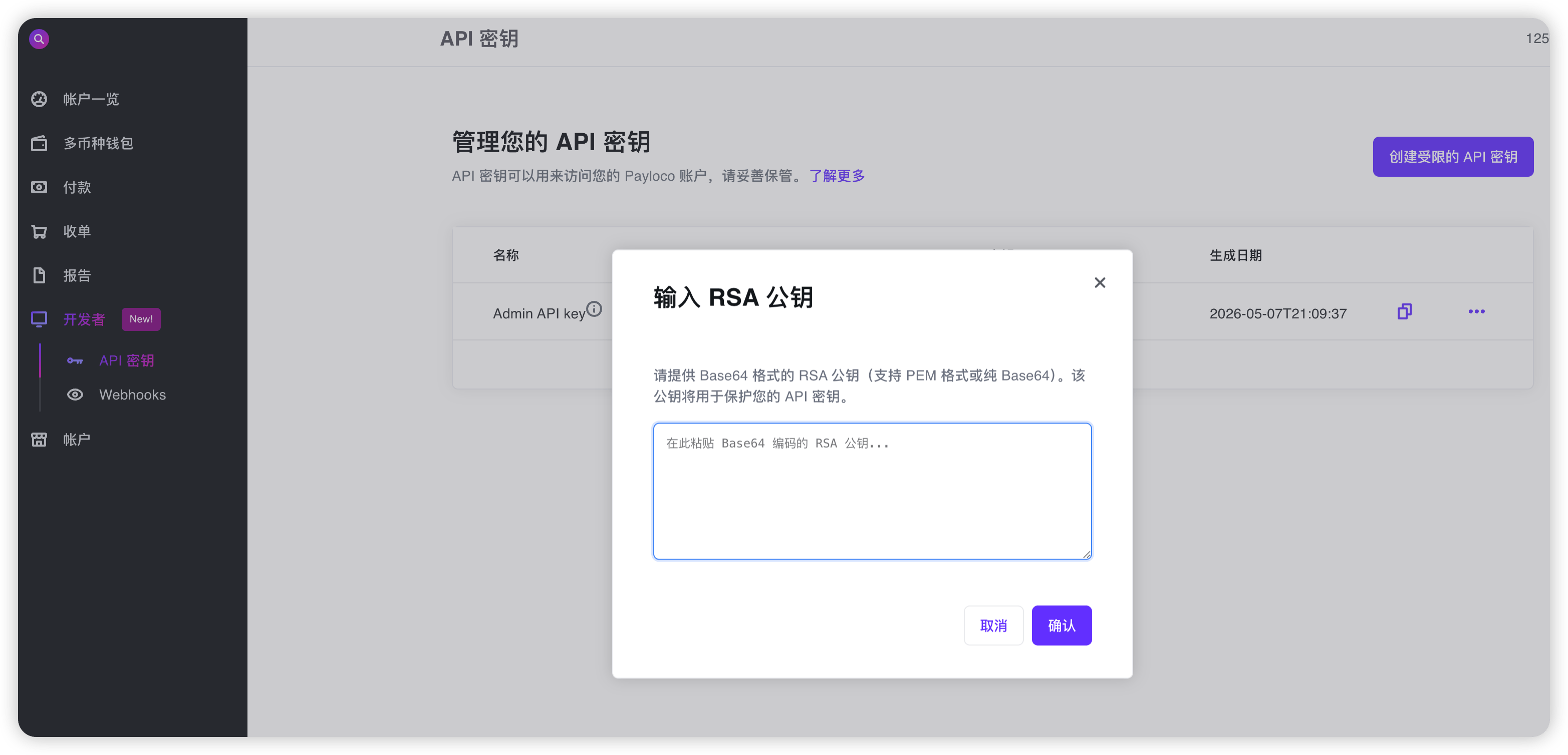
Key Configuration:
Access the configuration: Merchant Management Dashboard → Developer → API Key menu.
Two-Factor Authentication (2FA) must be enabled before configuring keys.
The webhook URL is used to receive asynchronous order callbacks from the Payloco server to your backend. This address can be submitted through API parameters or configured in the Merchant Management Dashboard. API parameter webhook URLs take priority over the dashboard settings. Access: Merchant Management Dashboard → Developer → Webhooks menu.
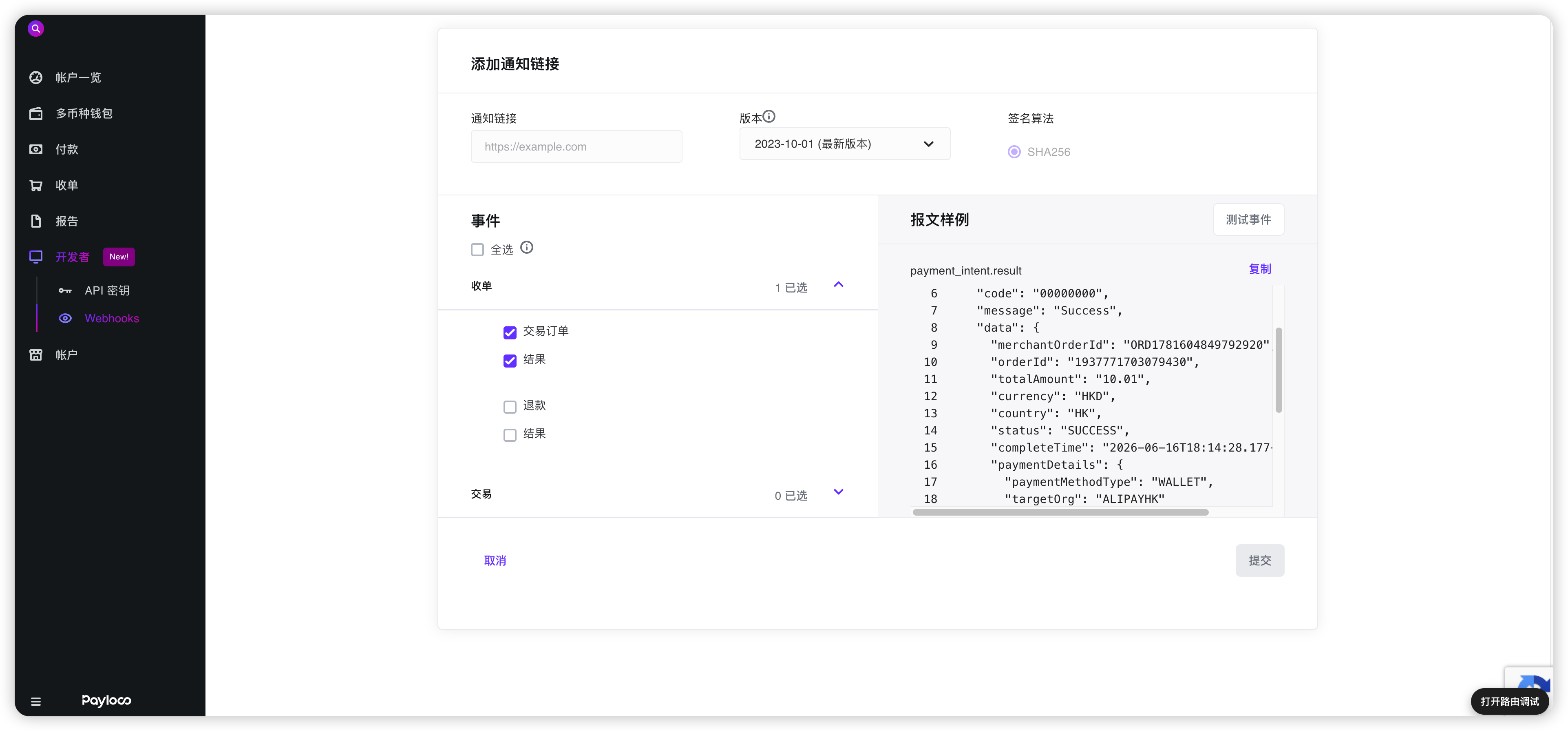
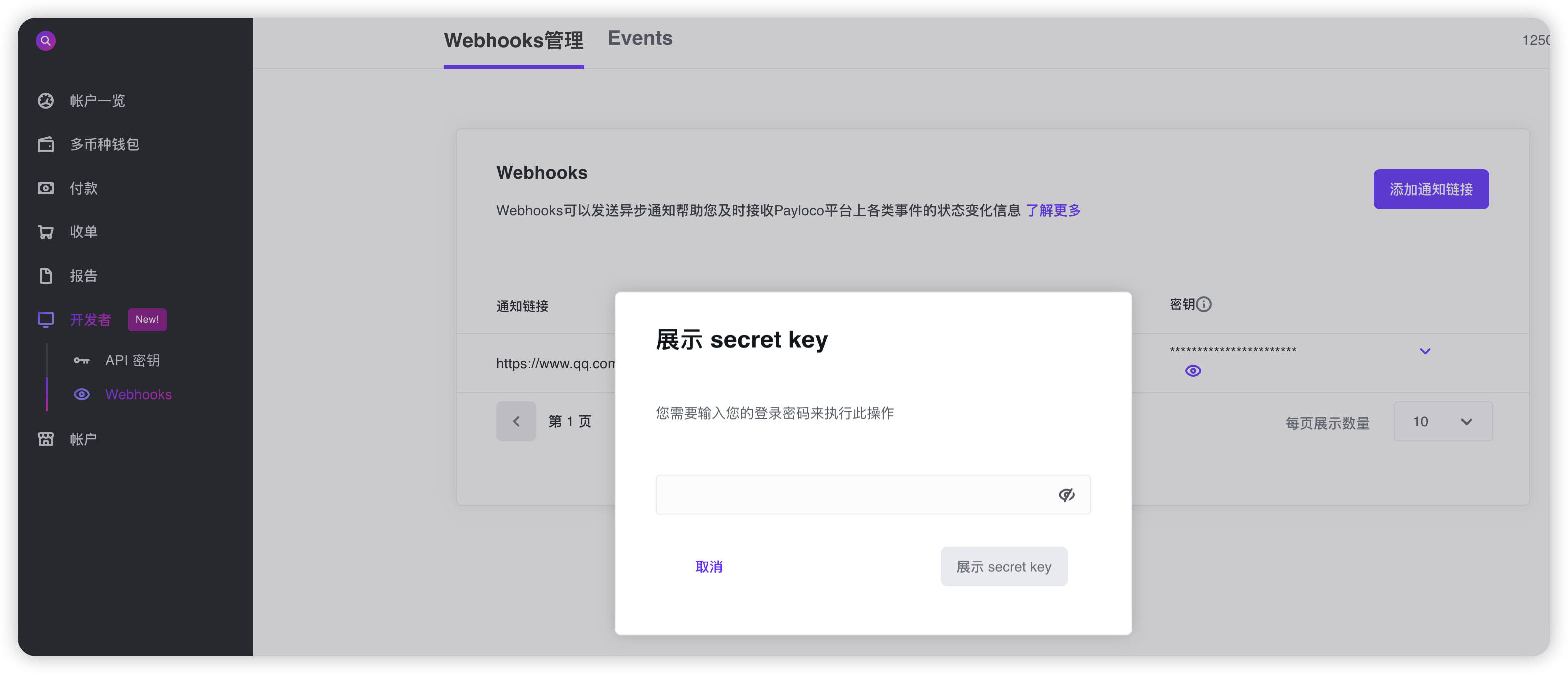
Webhook secrets can be viewed from the same location.
Viewing secrets requires login password verification
Public and Private Key Configuration
Purpose of Public and Private Keys
How to Generate Public and Private Keys
Merchant key pairs can be generated in three ways (choose any one). Please keep your private key safe for signing Payloco requests. Upload the public key to the Merchant Dashboard so Payloco can verify your signatures and prevent tampering during transmission. Obtain Payloco’s public key from the dashboard and use it in your system to verify Payloco’s signatures.
Generate Key Pair Online
Generate key pairs online using Payloco’s developer tools. The tool is pure JavaScript and does not communicate with Payloco servers, so your keys remain private.
Generate via SDK
The SDK provides a createKeyPair method or function in the development tools. Java SDK | PHP SDK
Generate via OpenSSL
Generate PEM public and private key files using OpenSSL commands and manually remove headers, footers, and line breaks to get the key string.
Download and install OpenSSL from: https://www.openssl.org/source/ Execute the following commands:
After executing the above commands, two files will be generated as follows (example):
Public key file public.key.pem:
Private key file private.key.pem:
Note: PKCS8 keys must have the header, footer, and line breaks removed.
Resulting public key string:
Resulting private key string:
The request body string used for signing with the merchant private key must be identical to the string in the HTTP body. Different formatting will produce different signatures and cause Payloco signature verification to fail. For example, the two JSON strings below have the same meaning but will produce different signatures due to formatting differences.
You can use the developer Self-Service Signing Tool to experience the signing process.
Formatted JSON string:
Compact JSON string:
Signature Algorithm
Sample Messages
Request message
Response message